Script Studio for Jira Cloud
Note: Script Studio makes it straightforward to write code that customises Jira. Scheduled jobs, calculated fields, automatic reactions to changes, actions applied during a workflow transition, changes to issue forms, and endpoints called by external systems are all written, tested and managed from a single screen inside the Jira administration area.
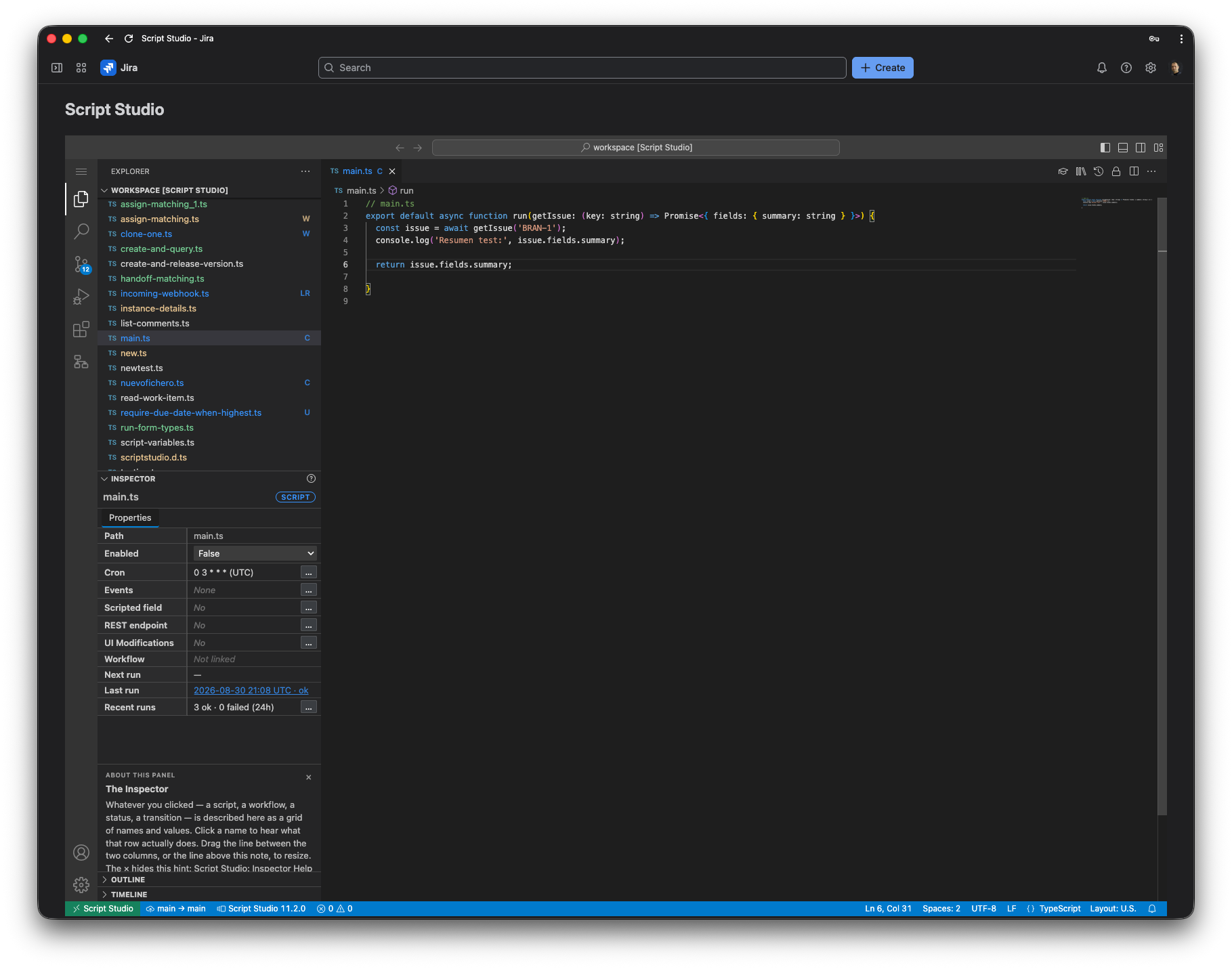
Note: How to read this documentation. Each page is written to be read straight through. Sections marked Advanced are collapsed by default and contain technical detail that is not required for normal use. Expand them only when needed.
1. Who this is for
Script Studio is intended for Jira administrators and integrators: the people responsible for configuring an instance, keeping its data consistent, and connecting it to the other systems an organisation uses.
2. What it does
Jira offers extensive configuration, but there is always a point beyond which its built-in options cannot express what an organisation needs. Script Studio lets an administrator write a short piece of code and attach it to the point in Jira where it is needed, all from a single screen in the admin area.
| Requirement | How it is met |
|---|---|
| Work that must happen regularly, without anyone remembering to do it | A scheduled job — escalating neglected items, closing stale work, producing periodic reports |
| A value that Jira cannot calculate on its own | A calculated field that appears on the issue, can be searched in JQL and used on boards |
| Something that must happen whenever a particular change occurs | A script that responds to Jira events, such as an issue being created or a comment being added |
| A rule that must be enforced during a workflow transition | A validator that prevents the transition, or a post function that acts once it has taken place |
| Fields that must behave differently depending on context | A UI modification that hides, requires or pre-fills a field on the create, view or transition screen |
| An external system that must create or update work in Jira | A REST endpoint that the external system calls, running logic the administrator controls |
| Data a script needs to remember from one run to the next | Its own SQL tables, created and queried directly from the script |
A script can also take a secret stored once for the installation, or ask for a few values on the spot when an administrator runs it by hand.
3. What it adds beyond Jira
| Capability | Provided by Script Studio |
|---|---|
| Calculated fields | Custom fields whose value is derived from other data, kept current automatically and searchable in JQL. Jira has no equivalent. |
| Conditional form behaviour | Fields that show, hide, require or pre-fill themselves in response to what else is on the form, written as code rather than assembled from a fixed rule builder. |
| Persistent storage | A script can hold its own state in tables it creates and manages itself, without any storage of its own to provision. |
| Logic without a ceiling | Conditions and actions expressed in code rather than selected from a fixed list. |
| Inbound integration | Endpoints that external systems can call directly, without being given Jira credentials. |
| A record of every execution | What ran, when, what it did, and what it produced — searchable, and retained. |
| Version control | Every change has an author, a description and a comparison, and can be pushed to an external repository for review. |
| A single view of customisation | Everything written for the instance appears in one list, showing what each item is used for and whether it is working. |
4. Why TypeScript
Scripts are written in TypeScript, which is native to the Jira Cloud platform. It is a language most development teams already use, and the editor provides completion and error checking against the Jira REST API as a script is written, so mistakes are identified immediately rather than when the script first runs.
5. Where scripts are stored
Each Jira site has a single shared workspace. All administrators see the same files and work on them collaboratively. Files are stored within the Atlassian tenant.
The workspace is a standard file tree, with folders created as required. Scripts reference one another by relative path, in the same way as any TypeScript project, which is how shared libraries are built.
6. Execution points
| Execution point | The script runs | Configured from |
|---|---|---|
| Manual | When an administrator runs it from the editor, optionally after filling in a short form | The editor |
| Schedule | At set times, in a selected time zone | Properties → Cron |
| Jira events | When a corresponding change occurs in Jira | Properties → Events |
| Calculated field | When Jira requires the value of a custom field | Properties → Scripted field |
| UI modification | When a create, view or transition screen is opened, or a watched field changes | Properties → UI Modifications |
| REST endpoint | When an external system calls its address | Properties → REST endpoint |
| Workflow rule | Before or after a transition, or when deciding whether to offer one | The Workflows view |
A single script may serve several of these purposes at once.
7. Documentation index
| Page | Contents |
|---|---|
| The Editor and the Workspace | The editor, the file tree, folders, the Properties panel, status indicators, extensions and file limits |
| Writing Scripts | The structure of a script, the execution context, calling Jira, shared libraries, running scripts, and the example library |
| Event Triggers | The event catalogue, the event selection screen, delivery behaviour and troubleshooting |
| Scheduled Scripts | The schedule screen, cron expressions, time zones and the Enabled setting |
| Calculated Custom Fields | Creating a field, data types, screen placement, testing and keeping values current |
| UI Modifications | Changing field visibility, requirement and value on create, view and transition screens |
| REST Endpoints | Endpoint configuration, authentication, immediate and background processing, and calling examples |
| Workflows | The Workflows view, the visual workflow editor, and the rules that run a script |
| Script Storage (SQL) | Creating tables, reading and writing them, and versioning a schema |
| Run Inputs and Script Variables | Forms collected before a manual run, and encrypted secrets shared across scripts |
| Source Control | Committing changes, reviewing differences, file history and configuring a repository |
| Run History and Diagnostics | The history view, filters, search, error grouping and retention |
| Security and Governance | Access control, permissions, execution limits, data storage and auditing |
8. Getting started
Install Script Studio on the Jira Cloud site. 2.
Open Apps → Script Studio as a site administrator. On first use, the workspace is created and populated with a short worked example. 3.
Press F5 to run the open file. Output is displayed in the Script Studio output panel. 4.
Open the Example Library from the Properties panel toolbar to browse the supplied examples and copy one into the workspace. 5.
Open Get Started from the Jira Apps menu for a guided walkthrough covering first steps, triggers, and workflows, with each step checked off as it is actually completed.
Note: On first use after installation or an upgrade, the application may report that storage is still being prepared. Reload the page after a few seconds.
Note: 📹 Video placeholder — getting started (10 minutes): installation, the supplied example, copying an example from the library, and scheduling it.