Script Studio: Calculated Custom Fields
A script can provide the value of a Jira custom field. The field appears on the issue view, is available in JQL, and can be used on boards and in exports. The value returned by the script is the value of the field.
Note: Jira has no equivalent facility of its own. A calculated field is one of the capabilities Script Studio adds to an instance.
Note: 📹 Video placeholder — creating a calculated field: writing the script, creating the field, testing it against existing issues, adding it to a screen, and using it in a JQL search.
1. Creating a field
- Write the script and select it in the file tree.
- In the Properties panel, open the Scripted field row.
- Enter the name, description and type, then select Create field. The field is created in Jira immediately.
- Test the field against existing issues.
- Add the field to a screen.
Note: A new field is not on any screen. Until it is added to one, it does not appear on the issue view. This is the most common reason for a newly created field appearing to have no effect.
2. The field configuration screen
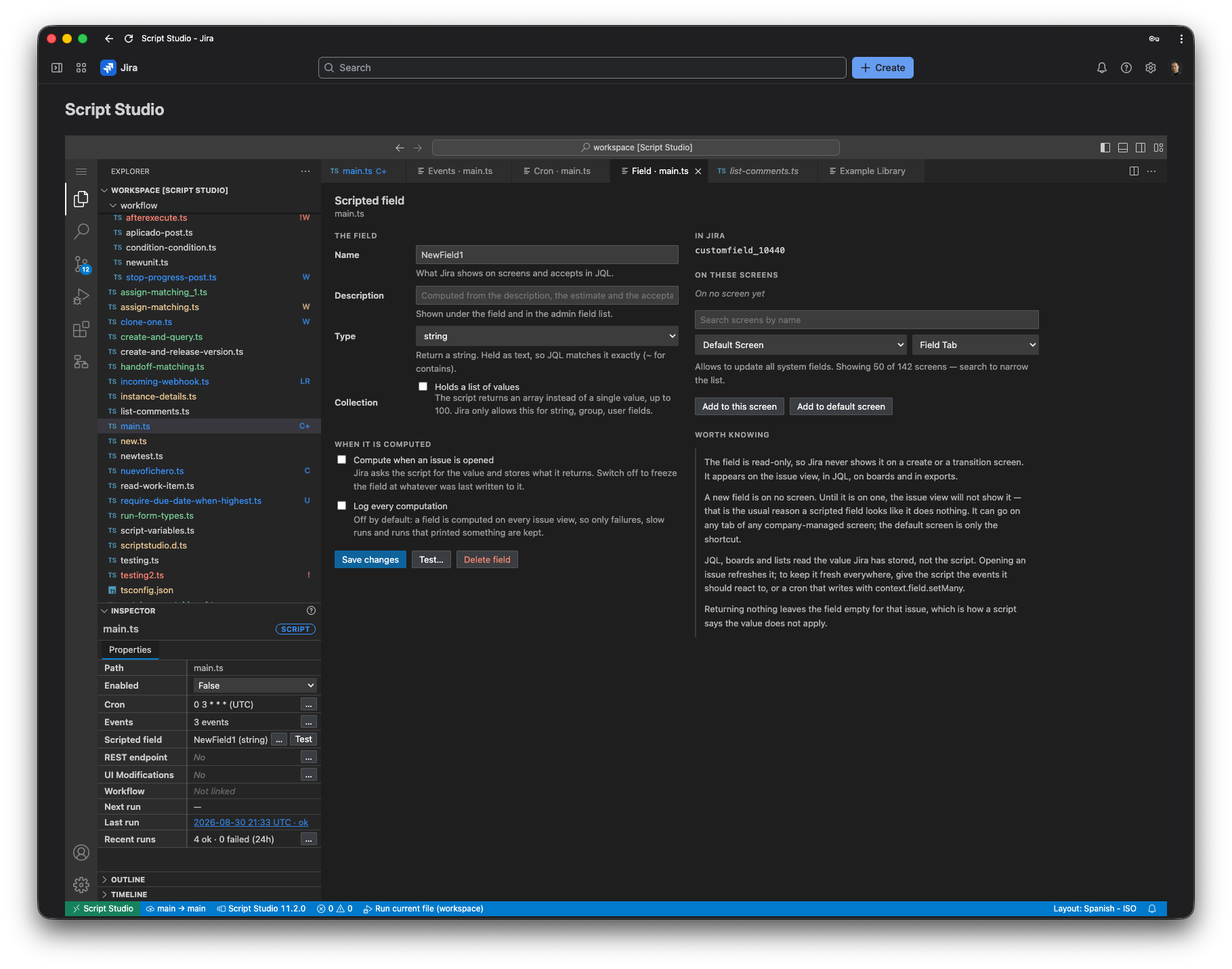
Field settings
| Setting | Purpose |
|---|---|
| Name | The name shown on screens and used in JQL. |
| Description | Shown beneath the field and in the Jira field list. |
| Type | The kind of value the field holds. See the table below. |
| Collection | Allows the field to hold several values rather than one, up to a maximum of 100. Available only for the types Jira permits. |
Available types
| Type | The script returns | Behaviour in Jira |
|---|---|---|
| Text | A string | Matched exactly in JQL; ~ may be used for partial matches |
| Number | A number | Can be sorted, and compared with > and < in JQL |
| Date | A date | Stored as a calendar date, without a time |
| Date and time | A date and time | Stored to the second |
| User | An account identifier | Displayed as the user; matched by user in JQL |
| Group | A group name | Displayed as the group |
Calculation settings
| Setting | Effect |
|---|---|
| Calculate when an issue is opened (enabled by default) | Jira requests the value whenever the issue is viewed, and stores the result. Disable this to keep the field at its last stored value, which is appropriate where the calculation is expensive and is driven from a schedule instead. |
| Record every calculation (disabled by default) | The field is calculated each time an issue is viewed, so only failures, slow calculations and calculations that produced output are normally recorded. Enable this temporarily while investigating a problem. |
Field status and screens
The right-hand section shows the Jira identifier assigned to the field, and every screen and tab on which it currently appears. Each can be removed individually.
Below this, the field can be added to a screen:
- Search for a screen by name.
- Select a screen and then a tab. The field may be placed on any tab of any screen.
- Add to default screen is available as a shortcut.
Screens belonging to team-managed projects are identified as such. These projects manage their own fields, and Jira may not permit the field to be added.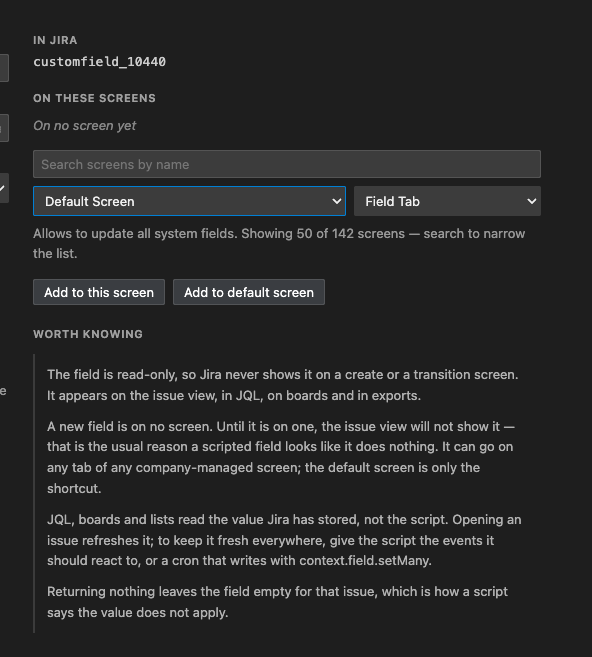
3. Testing a field
The Test button calculates the field against existing issues without altering them.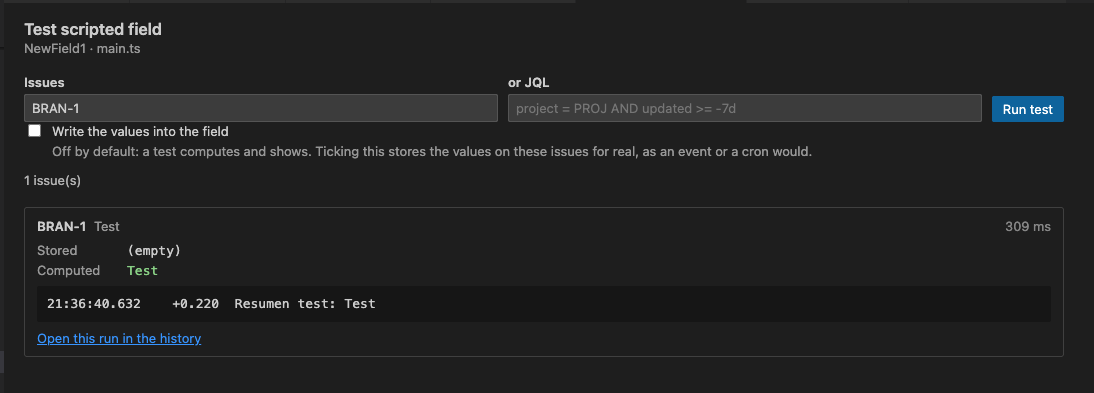
- Enter issue keys, or a JQL query. Up to ten issues are processed at a time.
- Each result shows the issue, the time taken, the value currently stored, the value just calculated, and any output produced by the script. Differences between the two values are highlighted.
- Write the values into the field is disabled by default. When enabled, the calculated values are stored on those issues.
- Each result links to its entry in the run history.
4. Writing the calculation
/**
 * The number of days an issue has remained in its current status.
 */
import { jira } from 'jira-api';

const MS_PER_DAY = 86400000;

export default async function run(_getIssue, context: ScriptContext) {
  const issue = context.field?.issue;
  if (!issue) {
    console.log('Run this from the test screen, or open an issue that displays the field.');
    return undefined;
  }

  const data = await jira.get('/rest/api/3/issue/{issueIdOrKey}', {
    path: { issueIdOrKey: issue.id },
    query: { fields: ['status', 'statuscategorychangedate', 'created'] }
  });

  const fields = data.fields as Record<string, any>;
  const since = fields.statuscategorychangedate || fields.created;
  const changedMs = Date.parse(String(since || ''));
  if (!Number.isFinite(changedMs)) {
    console.warn('No status change date is available for this issue');
    return undefined;
  }

  const days = Math.floor((Date.now() - changedMs) / MS_PER_DAY);
  console.log(`${issue.key || issue.id} has been ${fields.status?.name} for ${days} day(s)`);
  return days;
}
Note: Returning no value leaves the field empty for that issue. This is the appropriate way to indicate that the value does not apply, and is preferable to returning a placeholder that may be misinterpreted.
5. Keeping values up to date
Note: JQL searches, boards, lists and exports read the value stored by Jira, not the script. Opening an issue recalculates and updates the stored value. An issue that has not been opened since the underlying data changed will still be matched on its previous value.
Two approaches keep the values current across the instance:
- Configure the script to respond to events. The same script can respond to the changes that affect its value and update the issues concerned immediately.
- Give the script a schedule and update values in bulk:
/**
 * Updates the field across a project overnight.
 */
import { jira } from 'jira-api';

export default async function run(_getIssue, context: ScriptContext) {
  const found = await jira.get('/rest/api/3/search/jql', {
    query: { jql: 'project = PROJ AND statusCategory != Done', maxResults: 50, fields: ['created'] }
  });

  const entries = (found.issues || []).map((issue) => ({
    issue: issue.id,
    value: Math.floor((Date.now() - Date.parse(issue.fields.created)) / 86400000)
  }));

  const written = await context.field.setMany(entries);
  console.log(`Updated ${written} issue(s)`);
  return written;
}
context.field.set updates a single issue; context.field.setMany updates several and returns the number updated.
6. Using a calculated field in a workflow condition
A workflow condition cannot call a script directly, because Jira evaluates conditions in bulk as it displays an issue. A calculated field provides the answer instead: the script writes the value, and the condition reads it. The workflow editor can set this up automatically. See Workflows.
7. Points to note
- The field is read-only. Jira does not display it on creation or transition screens, since its value is determined by the script.
- A calculation is subject to a shorter time limit than a manual execution, because the issue view is waiting for the result. The calculation should therefore be kept concise.
- Deleting the field also removes it from every screen on which it appears.
- Renaming or deleting the script removes the associated field configuration.
8. Troubleshooting
| Symptom | Action |
|---|---|
| The field does not appear on the issue | It has not been added to a screen. Check the list of screens on the configuration screen. |
| The field is empty on every issue | The script is returning no value. Use the test screen and review the output. |
| JQL returns out-of-date values | Those issues have not been opened since the underlying data changed. Configure events or a scheduled update. |
| A field error is shown in the Properties panel | The most recent calculation failed. The message is displayed there, and the execution is recorded in the run history. |
| Jira did not allow the field to be added to a screen | The screen probably belongs to a team-managed project, which manages its own fields. |