Script Studio: UI Modifications
A script can change how fields behave on an issue's create, view or transition screen: hiding a field, making it required, setting its value, or reading what the user just typed. This is provided through Jira's UI Modifications capability, configured from within Script Studio.
Note: 📹 Video placeholder — hiding a field on the create screen until a prior field is filled in, and testing the result live.
1. Where this runs
Note: Unlike every other script type in Script Studio, a UI modification script runs in the user's browser, not on the server. It has a different, smaller set of capabilities as a result — see section 4.
2. Configuring a UI modification
- Write the script and select it in the file tree.
- In the Properties panel, open the UI Modifications row (or use the Configure UI Modifications command). This opens a dedicated tab for the script.
- Choose the screens, projects and issue types the script applies to.
- Set Enabled to Yes.
- Open the relevant Jira screen to see the effect. Pressing Run in the editor does not trigger a UI modification — only opening the actual form does.
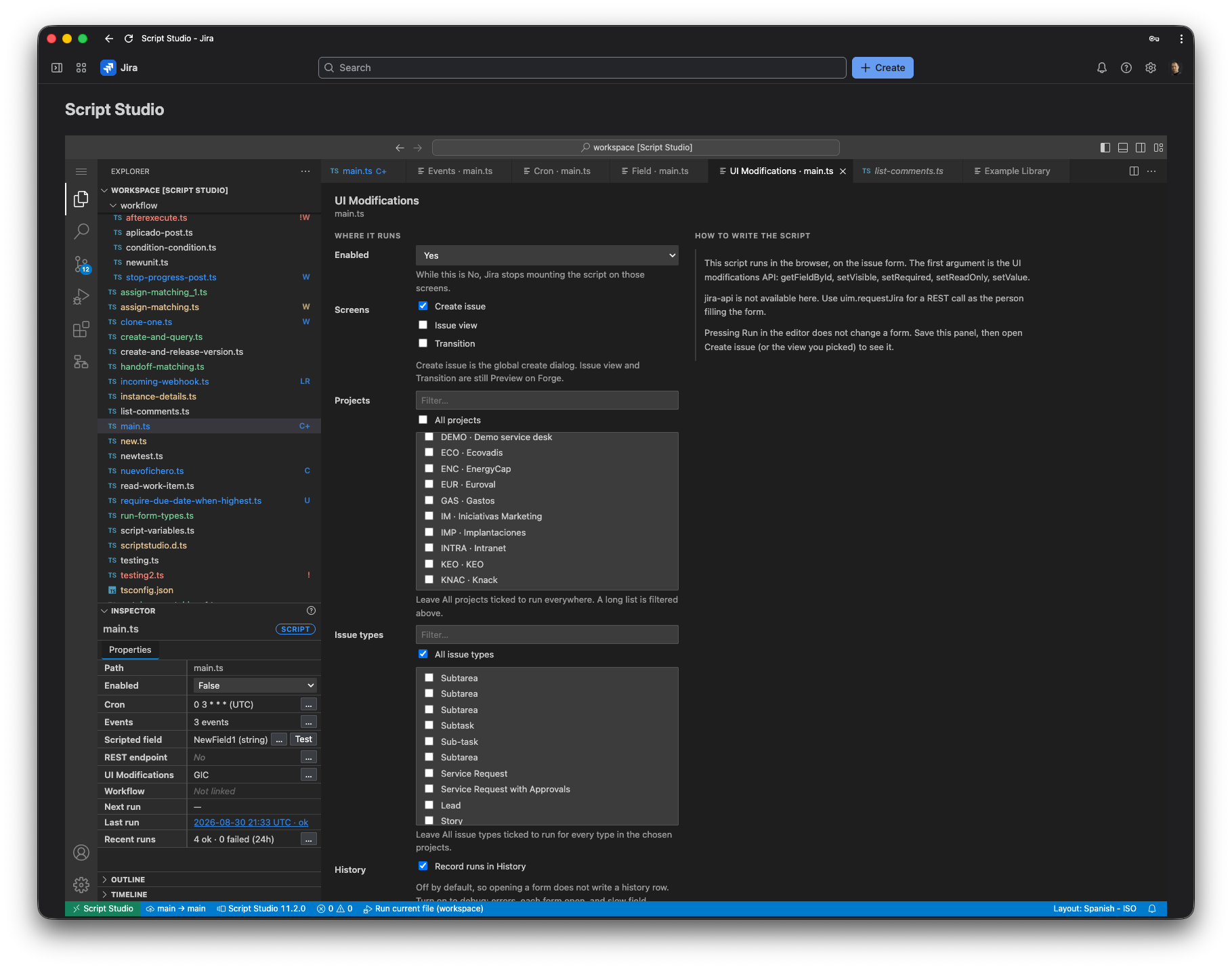
3. Configuration options
| Setting | Purpose |
|---|---|
| Enabled | While set to No, Jira does not run the script on any screen. |
| Screens | One or more of: the global create dialog, the issue view, and the transition screen. The last two are provided by Jira as a preview capability. |
| Projects | Restrict the script to specific projects, or leave set to all projects. A filter is provided for a long list. |
| Issue types | Restrict the script to specific issue types within the selected projects, or leave set to all issue types. |
| Record runs in History | Disabled by default, so that opening a form does not add an entry to the run history on every occasion. Enable temporarily to record failures, every form opening, and slow field changes, while investigating a problem. |
4. Writing the script
A UI modification script is a default exported function, in the same shape as any other script, but its first argument is the field API rather than the Jira client.
export default async function run(uim: UiModifications, context: ScriptContext) {
  const priority = uim.getFieldById('priority');
  const justification = uim.getFieldById('customfield_10101');
  if (!priority || !justification) return;

  const isHighPriority = String(priority.getValue() || '') === '1'; // Highest
  justification.setVisible(isHighPriority);
  justification.setRequired(isHighPriority);
}
The field API
| Method | Effect |
|---|---|
uim.getFieldById(id) | Returns the field on the current screen, or nothing if it is not there. |
uim.getChangeField() | The field that was just edited, when the script is running because a value changed. |
uim.getScreenTabById(id) | Controls the visibility of a screen tab, and can bring it into focus. |
field.getValue() / setValue(value) | Reads or sets the field's current value. |
field.isVisible() / setVisible(visible) | Shows or hides the field. |
field.isReadOnly() / setReadOnly(readOnly) | Locks or unlocks the field. |
field.setRequired(required) | Marks the field as required or optional. |
field.getName() / setName(name), getDescription() / setDescription(text) | Reads or overrides the label and helper text shown for the field. |
Calling Jira from within the script
The standard Jira client used elsewhere in Script Studio is not available here, since it calls the server on the application's own permissions. A UI modification script instead uses uim.requestJira(url, options), which makes the call as the person filling in the form, using their own permissions.
5. The execution context
The second argument carries context.trigger === 'uimod' and a populated context.uimod:
| Property | Contents |
|---|---|
uimod.viewType | Which screen the script is running on |
uimod.project | The project of the issue being created or edited |
uimod.issueType | The issue type selected |
uimod.issue | The issue being viewed or transitioned. Not present on the create screen. |
uimod.changeFieldId | The identifier of the field that triggered this run, when applicable |
6. Points to note
- A script runs once when the form opens, and again whenever a field it reads changes — Script Studio works out which fields to watch from the script's own calls to
getFieldById. - A script that fails writes to the browser console rather than to the Jira screen, so a silent failure should be checked there first, or diagnosed by temporarily enabling Record runs in History.
- Deleting the script, or switching all screens off, removes the UI modification from Jira as well.
7. Troubleshooting
| Symptom | Action |
|---|---|
| Nothing happens on the form | Confirm Enabled is set to Yes, and that the project and issue type of the form match the configuration. |
| Pressing Run in the editor has no visible effect | Expected. Open the actual Jira screen to see a UI modification in effect. |
| A field is not found | Confirm the field is actually present on that screen, and that its identifier is correct. |
| The script appears to fail silently | Enable Record runs in History and check the browser console. |
| A REST call from the script is rejected | The call is made as the person filling in the form, so it is limited to what that person, rather than the application, is permitted to do. |