Script Studio: Event Triggers
A script can be configured to run automatically whenever a corresponding change occurs in Jira. Script Studio supports 47 event types across 13 groups, and each script selects the events it responds to.
Note: 📹 Video placeholder — configuring a script to respond to Issue created, creating an issue in Jira, and reviewing the resulting execution.
1. Configuration
- Select the script in the file tree.
- In the Properties panel, open the Events row.
- Select the events the script should respond to. Changes are saved immediately.
- Set Enabled to True in the Properties panel.
Note: A script does not run until Enabled is set to True, regardless of how many events have been selected. The event selection screen displays a reminder while this is the case.
2. The event selection screen
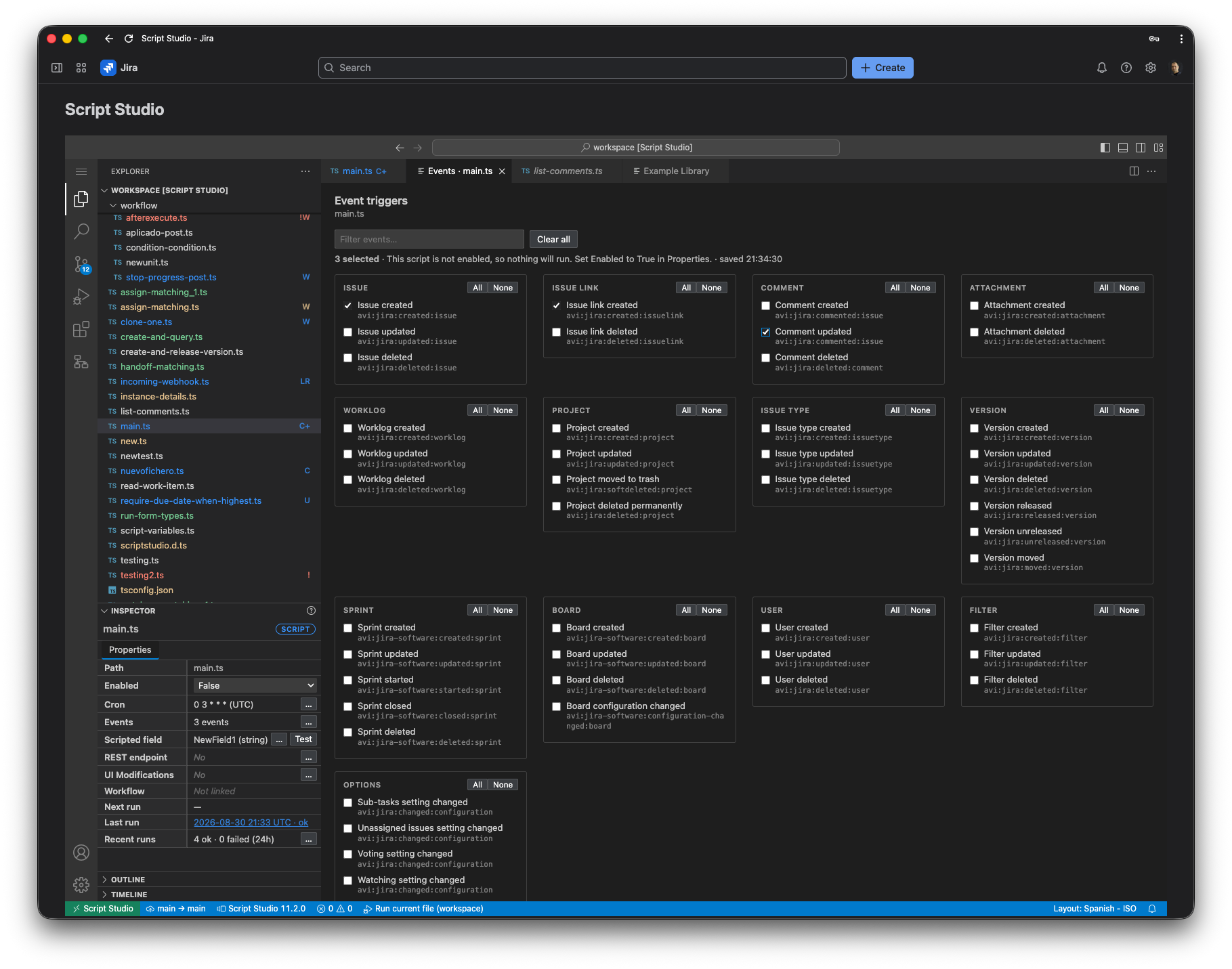
The screen lists the complete catalogue, arranged in groups, and provides:
- a search field for locating an event by name;
- All and None options for each group;
- a Clear all option and a running count of the events selected;
- the Jira event name beneath each entry, for reference against the Atlassian documentation.
3. The event catalogue
| Group | Events |
|---|---|
| Issue | Created, updated, deleted |
| Issue link | Created, deleted |
| Comment | Created, updated, deleted |
| Attachment | Created, deleted |
| Worklog | Created, updated, deleted |
| Project | Created, updated, archived, deleted |
| Issue type | Created, updated, deleted |
| Version | Created, updated, deleted, released, unreleased, moved |
| Sprint | Created, updated, started, closed, deleted |
| Board | Created, updated, deleted, configuration changed |
| User | Created, updated, deleted |
| Filter | Created, updated, deleted |
| Options | Site-wide configuration settings, such as voting, watching and time tracking |
Advanced: the relationship to Jira events
Several entries in the catalogue correspond to the same underlying Jira event. The creation and the editing of a comment are both delivered as avi:jira:commented:issue, and the site configuration settings are all delivered as avi:jira:changed:configuration with differing property keys. Script Studio distinguishes between them, so that selecting Comment updated results in the script running only when a comment is edited.
4. Information available to the script
A script started by an event receives the details of that event through context.event.
| Property | Contents |
|---|---|
event.key | The catalogue identifier, for example issue.created |
event.type | The Jira event name, for example avi:jira:created:issue |
event.subject | A short description of what changed, such as an issue key |
event.payload | The complete event data supplied by Jira |
/**
 * Assigns newly created high-priority work to the person currently on duty.
 */
import { jira } from 'jira-api';

const ON_DUTY: Record<string, string> = {
  Highest: '5b10a2844c20165700ede21g',
  High: '5b10a2844c20165700ede21g'
};

export default async function run(_getIssue, context: ScriptContext) {
  const created = context.event.payload.issue;
  if (!created || !created.key) return null;

  if (created.fields?.assignee) {
    console.log(`${created.key} is already assigned`);
    return null;
  }

  const priority = created.fields?.priority?.name || '';
  const accountId = ON_DUTY[priority];
  if (!accountId) {
    console.log(`${created.key} has priority ${priority || 'none'}; no action taken`);
    return null;
  }

  await jira.put('/rest/api/3/issue/{issueIdOrKey}/assignee', {
    path: { issueIdOrKey: created.key },
    body: { accountId }
  });

  console.log(`${created.key} (${priority}) assigned to ${accountId}`);
  return accountId;
}
5. Delivery behaviour
The following characteristics should be taken into account when writing a script that responds to events.
| Behaviour | Consequence |
|---|---|
| An event may be delivered more than once | The script should be safe to run twice for the same change. Verify the current state before acting, rather than assuming the change has not already been handled. |
| Delivery may be delayed | Events can arrive some time after the change. Where the decision depends on the current state, read the issue again rather than relying on the event data. |
| Changes made by Script Studio are excluded | A script that modifies an issue is not started again by its own change. |
| Every execution is recorded | Successful and failed executions alike appear in the run history, and a failure is indicated in the file tree. |
6. Restricting when a script acts
Event selection applies to the whole site. Any further condition — a particular project, issue type or field — is expressed within the script.
export default async function run(_getIssue, context: ScriptContext) {
  const issue = context.event.payload.issue;

  // Restrict to a single project
  if (!String(issue?.key || '').startsWith('SUP-')) return null;

  // Act only when the status has actually changed
  const changed = context.event.payload.changelog?.items || [];
  if (!changed.some((item) => item.field === 'status')) return null;

  // …
}
7. Troubleshooting
| Symptom | Action |
|---|---|
| The script never runs | Check that Enabled is set to True in the Properties panel. This is the most frequent cause. |
| The script runs but takes no action | The script is returning early. Add output before each condition and review the run history. |
| The script runs for issues it should ignore | Add the relevant condition within the script, as shown above. |
| The script runs twice for one change | Expected behaviour. Ensure the script is safe to run twice. |
| The script runs later than expected | Expected behaviour. Where timing is critical, use a workflow post function instead. |
| The file tree shows a failure indicator | Open the run history from the Properties panel to review the error. |
| Removing the last event disabled the script | Expected behaviour. A script with neither a schedule nor an event has no means of running. |