Script Studio: Workflows
Script Studio provides a visual workflow editor within the Jira administration area, together with three types of rule that run a script during a transition. Workflows are reached from the Workflows view in the sidebar.
Note: 📹 Video placeholder — opening a workflow, examining a transition, adding a validator, and linking it to a script.
1. The Workflows view
The Workflows view in the sidebar lists the workflows defined on the site, grouped by scope, with the transitions of each workflow shown beneath it.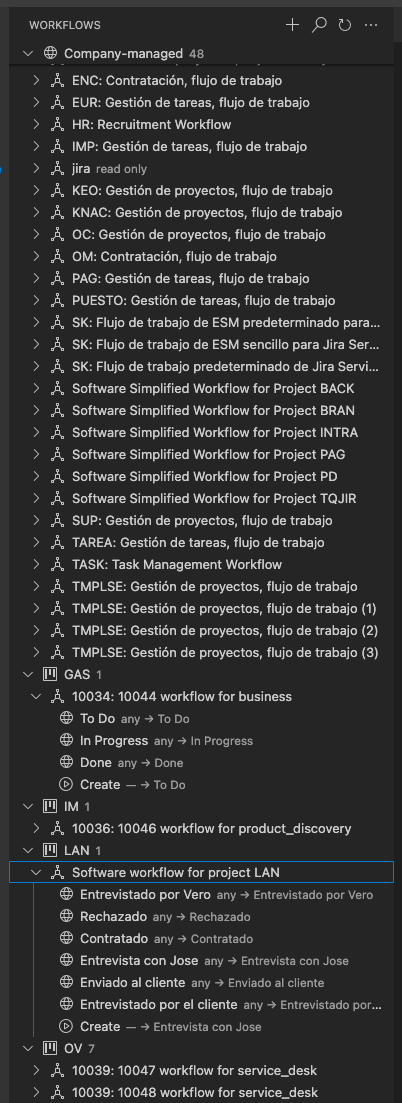
- Workflows are grouped into those shared across projects and those belonging to a single team-managed project.
- Workflows that cannot be edited are identified as such.
- A search field is provided for locating a workflow by name.
- Selecting a workflow opens it in the editor. Selecting a transition opens the workflow with that transition already displayed.
2. The workflow editor
A workflow opens as a tab, in the same way as any other document. It has an unsaved-changes indicator, and supports Ctrl+S, undo and redo.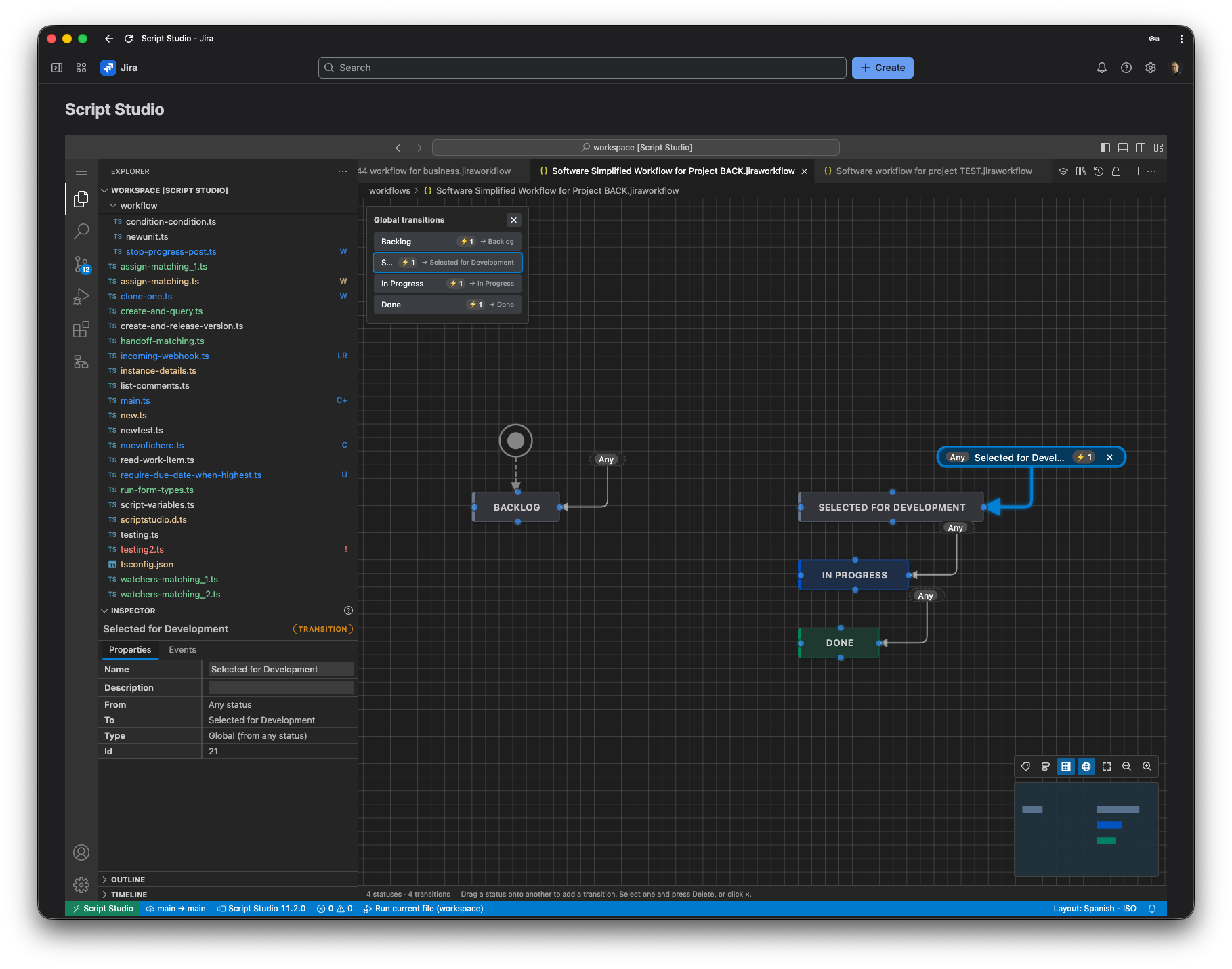
The diagram
Statuses are shown as boxes and transitions as arrows between them, laid out using the positions Jira itself holds, so the diagram matches what the Jira workflow editor displays.
| Action | How |
|---|---|
| Move around the diagram | Drag the background, or hold the space bar and drag |
| Zoom in or out | The zoom controls in the corner, or the keyboard shortcut shown on them |
| Fit the whole workflow in view | The fit-to-screen control |
| Select a status or transition | Click it. The inspector shows its details. |
| Move a status | Drag the box |
| Create a transition | Drag from the connection point on the edge of a status to another status |
| Delete the selection | Press Delete |
| Navigate a large workflow | Use the overview map in the corner of the diagram |
| Show or hide transition names, rule counts and global transitions | The view controls beside the overview map |
Each transition displays small markers indicating whether it has conditions, validators or post functions, so the rules present on a workflow are visible without opening each transition in turn.
The toolbar
| Option | Purpose |
|---|---|
| Save | Sends the workflow to Jira. The workflow is validated before it is saved. |
| Check | Asks Jira what it would reject, without saving anything. |
| Reload | Discards the current changes and reads the workflow again. |
| Add status | Adds a status to the workflow, either a new one or an existing one. |
| Auto-arrange | Lays out the statuses automatically and retains the arrangement. |
| Projects | Lists the projects that use this workflow. |
Advanced: rules belonging to other applications
The inspector displays every rule on a transition, including system rules and rules belonging to other applications, marking those as read-only. Jira replaces a transition entirely when a workflow is saved, so displaying all of the rules is what confirms that none of them are lost. Rules belonging to other applications pass through an edit unchanged, identified reliably regardless of which app registered them.
3. The transition inspector
Selecting a transition displays its name and description, together with three sections: conditions, validators and post functions. Rules can be added, reordered and removed, and conditions can be arranged into groups where either all of them or any one of them must hold.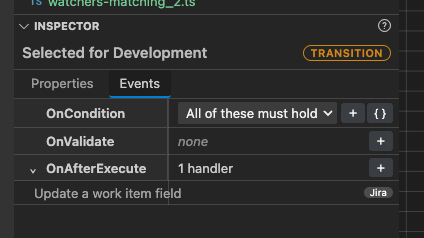
4. The three types of rule
| Rule | Runs | Purpose | Time limit |
|---|---|---|---|
| Validator | Before the transition completes | Determines whether the transition is permitted | 4 seconds |
| Post function | After the transition has completed | Performs follow-up work, with access to the issue, the comment and the change record | 20 seconds |
| Condition | When Jira displays the available transitions | Determines whether the transition is offered to the user | Immediate |
What a validator script returns
| The script | Result |
|---|---|
Returns true, or returns nothing | The transition is allowed |
Returns false | The transition is blocked, with the rule's own message |
| Returns a piece of text | The transition is blocked, and that text is shown to the person clicking the button |
| Fails to complete (an error, or a timeout) | The transition's failure behaviour applies — blocking, by default |
Validators and post functions
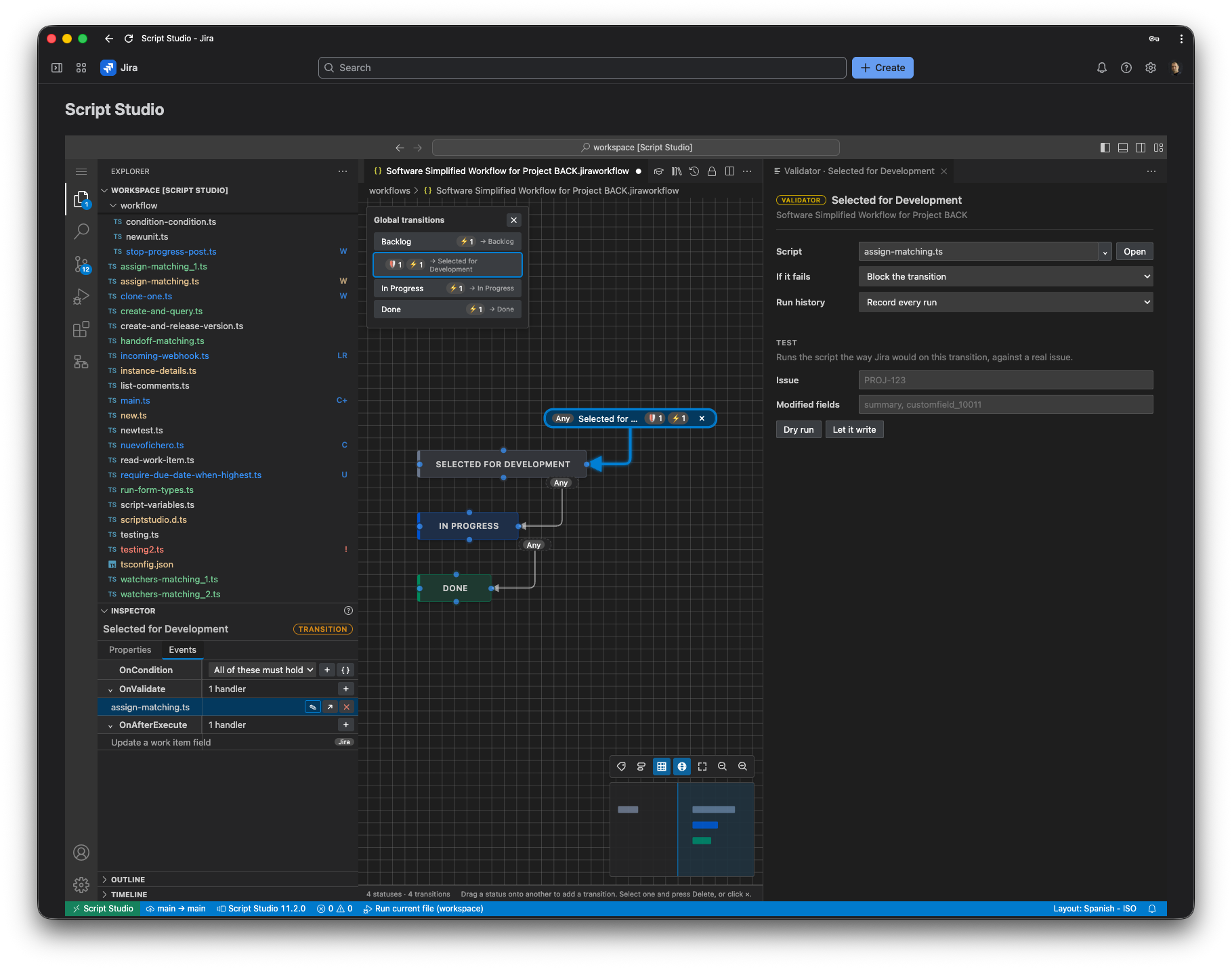
Each is linked to a script. A rule card provides the following:
- Link a script, or New from template to create one and link it in a single step.
- Open script, which opens the linked script in the editor.
- If the script fails: block the transition, or let it through. Blocking is the default for a validator, on the basis that a check which did not run has not been passed.
- Recording: record every execution, or record failures only.
- A test, which runs the rule against an issue of your choosing and displays the result together with the output produced by the script. The test never writes to Jira: any call the script makes other than a read is refused for the duration of the test, whatever the script itself asks for.
Conditions
A condition is written as a Jira expression rather than as a script, because Jira evaluates all conditions at once while displaying an issue and cannot call anything external at that moment.
The editor provides:
- Ready-made examples for the most common requirements, which can be inserted with a single click: only the assignee may move the item, every sub-task is complete, the reporter belongs to a group, a field has been filled in, only within one project, not on a particular day.
- Check, which validates the expression.
- Try it, which evaluates the expression against a chosen issue and reports the result.
Using a script to govern a condition
Where the decision genuinely requires a script, the editor provides a computed gate. The script is set up as a calculated field, which is recalculated when an issue is opened, and the editor writes the expression that reads that field. The condition therefore consults a value the script has already produced, rather than calling the script as the issue is drawn.
The editor can either use an existing script or create the gate script for you, and then builds the expression automatically.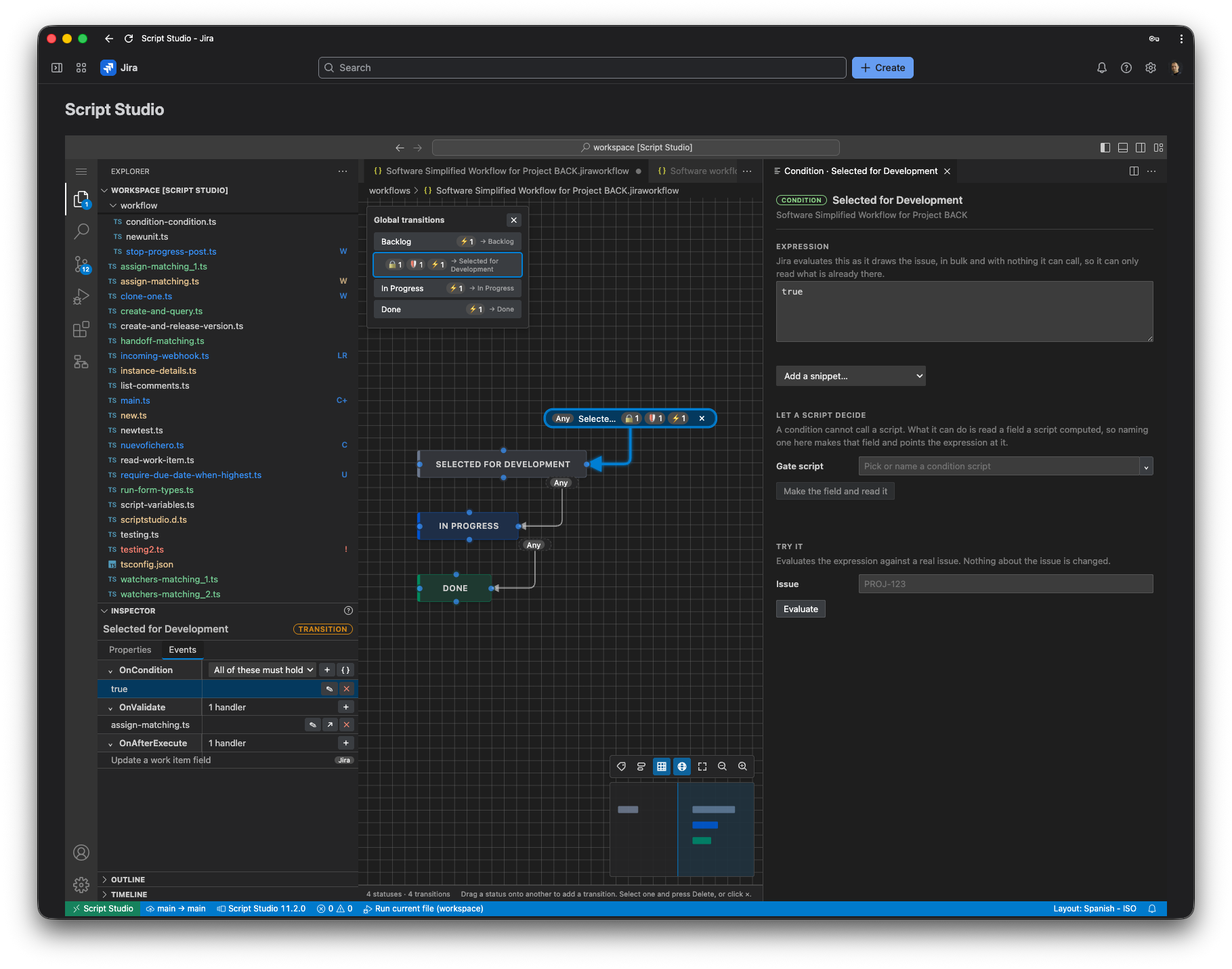
5. Identifying where a script is used
The Properties panel lists the transitions that use the selected script, together with the workflow and rule type concerned. A script used by a workflow rule is also marked in the file tree.
6. Choosing between a workflow rule and an event
| Use | When |
|---|---|
| A validator | The transition must be prevented. No other mechanism can do this, as events occur after the transition has taken place. |
| A post function | The follow-up work must form part of the transition and take place immediately. |
| A condition | The transition should not be offered at all, which is clearer for the user than offering it and refusing it. |
| An event trigger | The work is not time critical and should not delay the user's transition. |
7. Troubleshooting
| Symptom | Action |
|---|---|
| A transition is prevented without explanation | A validator has failed, or returned false. The execution is recorded in the run history with the full error or return value. |
| A transition is no longer offered | A condition has evaluated to false, or the expression could not be evaluated. Both cases are recorded in the run history. |
| A transition responds slowly | A validator is subject to a short time limit. Move any substantial work to a post function or an event trigger. |
| The rule has no effect | The rule may have been added without a script being linked. Open it and select one. |
| A test appears to do nothing | The script may be trying to write to Jira. Testing only permits reads; switch off the test to run the rule for real. |
| Jira rejected the workflow when saving | Use Check to see what Jira objects to before attempting to save again. |
| The workflow cannot be edited | The Workflows view marks read-only workflows. These are typically in use by projects in a way that prevents modification. |