Script Studio: Run Inputs and Script Variables
Two facilities let a script take information from outside its own source code: run inputs, values an administrator types in immediately before running a script by hand, and script variables, secrets stored once for the installation and read by any script.
1. Run inputs
A script can declare a small form. When an administrator runs it manually, Script Studio presents that form, collects the values, and passes them to the script as context.input.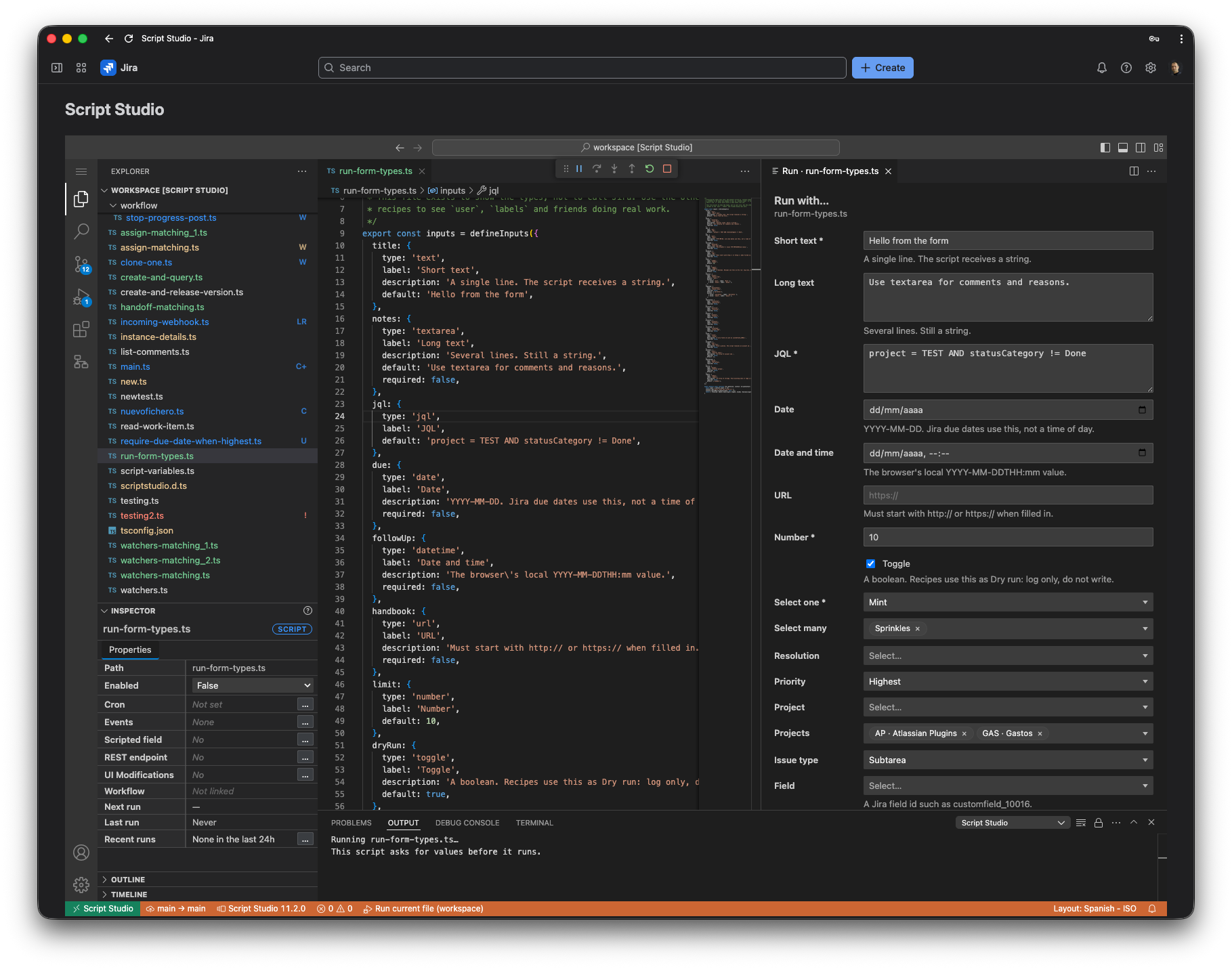
Declaring inputs
export const inputs = defineInputs({
  project: { type: 'project', label: 'Project', required: true },
  onlyOpen: { type: 'toggle', label: 'Open issues only', default: true },
  note: { type: 'textarea', label: 'Comment to add', default: '' }
});

export default async function run(_getIssue, context: ScriptContext) {
  const { project, onlyOpen, note } = context.input || {};
  console.log(`Running for ${project}, open only: ${onlyOpen}`);
  // …
}
Available field types
| Category | Types |
|---|---|
| Plain values | text, textarea, number, toggle, url, date, datetime, jql |
| Fixed choices | select, multiselect — supply your own list of options |
| A single value from Jira | resolution, priority, project, issuetype, field, user, group |
| Several values from Jira | projects, users, groups, labels |
Each field takes a label, an optional description, an optional default value, and can be marked required. Up to 24 fields may be declared on one form.
Note: The user, group and labels pickers (and their plural forms) search Jira as you type, rather than offering a fixed preloaded list, so they stay usable on a site with a large number of people or labels.
Note:
context.inputis only populated for a manual run of a script that declaresinputs. It is empty for a schedule, an event, or any other execution point, since there is nobody to ask. Give each field a sensible default so the script still behaves correctly when nothing was entered.
2. Script variables
A script variable is a named secret, set once for the whole installation and available to a script as context.variables.NAME. It is the appropriate place for a third-party API key, a webhook secret, or any other value that should not appear in the script's own source code and version history.
Note: Do not use a script variable for an Atlassian account password or an Atlassian API token. Script Studio already acts as the site's administrator, or as itself, for everything it does in Jira — there is no situation in which a script needs separate Atlassian credentials of its own.
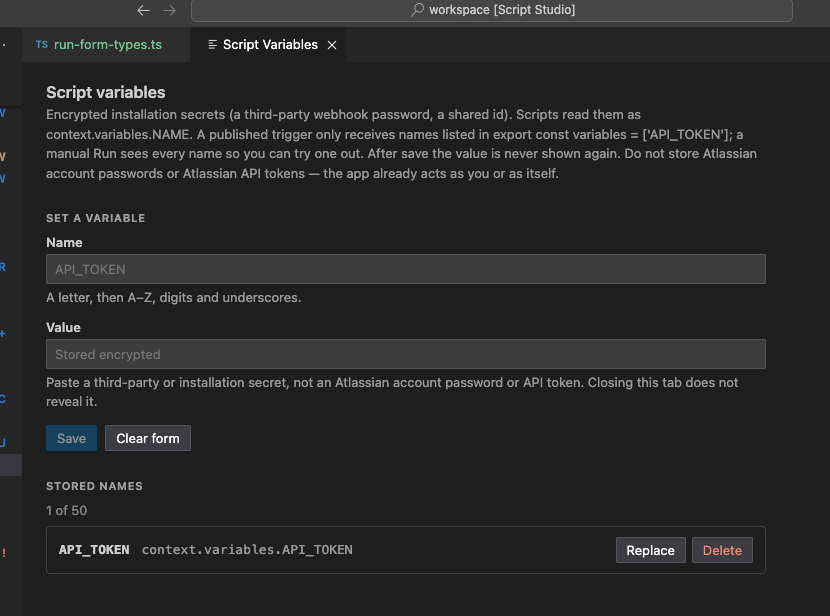
Setting a variable
- Run the Script Variables command.
- Enter a name (a letter followed by capital letters, digits and underscores, for example
API_TOKEN) and the value. - Select Save.
Note: The value is sent once and the field is then cleared. It cannot be retrieved or displayed again through Script Studio — only the name of each stored variable is shown afterwards. Keep a record of the value elsewhere if it will be needed again outside the application.
Reading a variable: manual runs versus everything else
This works differently depending on how the script is started, deliberately, so that a secret is never exposed to an automated trigger by accident.
| How the script is started | What context.variables contains |
|---|---|
| A manual run, from the editor | Every stored variable, so an author can try a name while writing the script |
| A schedule, an event, a field, a REST call or a workflow rule | Only the names the script has explicitly listed in export const variables |
| A UI modification | None. UI modification scripts run in the browser and never receive variables, whether or not any are listed. |
export const variables = ['API_TOKEN'];

export default async function run(_getIssue, context: ScriptContext) {
  const token = context.variables.API_TOKEN;
  if (!token) {
    console.warn('API_TOKEN has not been set.');
    return;
  }
  // Use the token, for example in a call to an external system.
}
Once a script has been tried manually and the correct name is known, add the export const variables line so the same script keeps working once it is put on a schedule, wired to an event, or exposed as an endpoint. A variable that has not been set, or has not been listed, is undefined rather than an error, so a script should check for it explicitly.
Limits
| Limit | Value |
|---|---|
| Variables per installation | 50 |
| Name format | A letter, then up to 31 further capital letters, digits or underscores |
| Value length | 3,000 characters |
Note: Variable values are stored encrypted and are never written to the run history, however a script uses them.