Script Studio: The Editor and the Workspace
Script Studio is opened from Apps → Script Studio in the Jira administration area and is available to Jira administrators. It presents a full code editor, with the file tree, tabs, command palette, keyboard shortcuts and search behaving as in a standard desktop editor.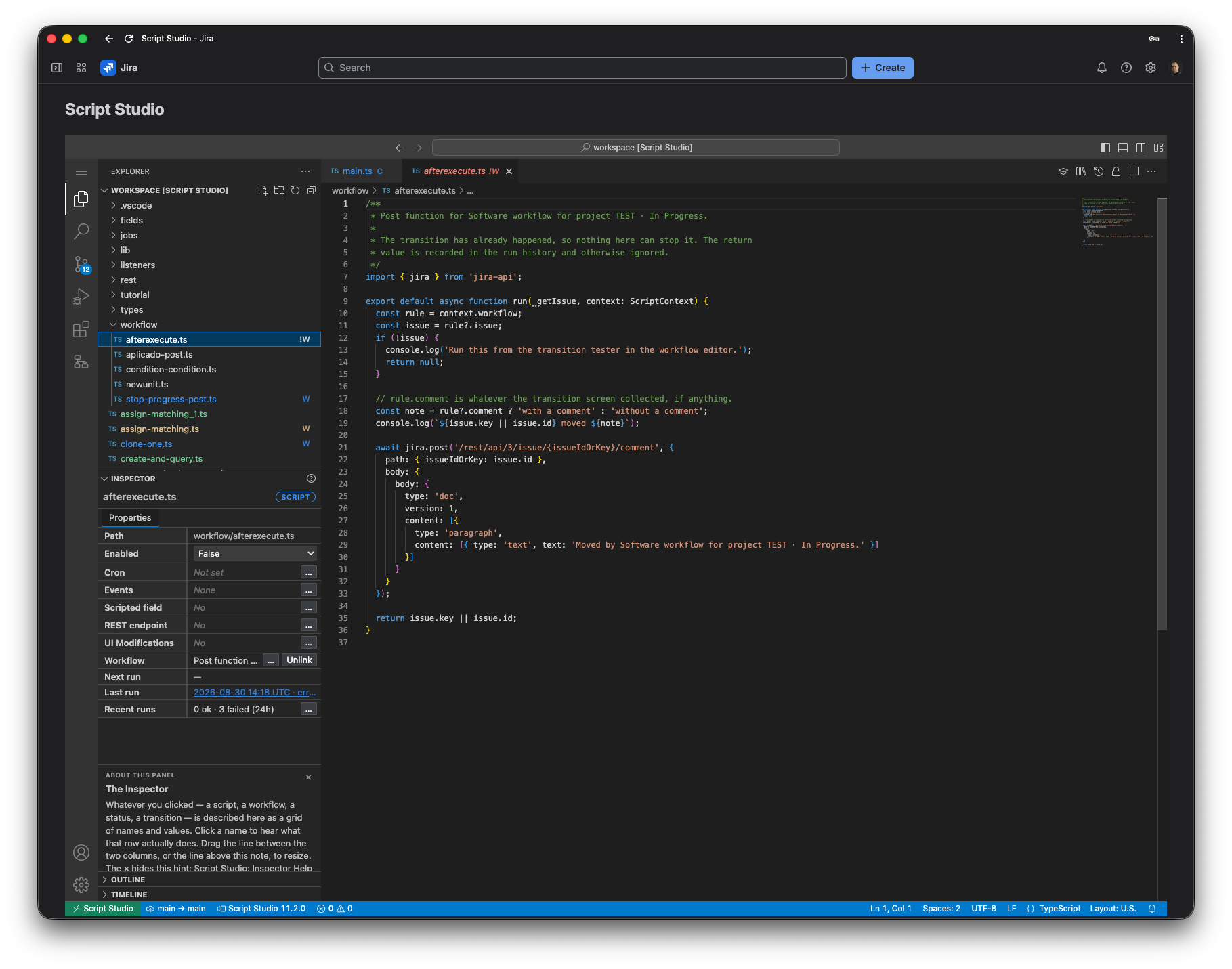
Note: 📹 Video placeholder — guided tour of the editor (5 minutes): the file tree, the Properties panel, source control, and run history.
1. The shared workspace
Each Jira site has a single workspace, and all administrators work on the same files. There are no separate copies to reconcile: files saved by one administrator are the files opened by the next.
Files are stored within the Atlassian tenant and do not leave the Atlassian data boundary. Advanced: migration from earlier versions
Earlier releases provided a separate workspace for each administrator. These are no longer created. Any files held in a personal workspace are transferred into the shared workspace automatically the first time that administrator opens Script Studio following the upgrade. Where a file of the same name already exists in the shared workspace, the existing file is retained.
2. Organising scripts into folders
Folders are created in the usual way: right-click in the file tree and select New Folder, or save a file at a nested path.
No particular structure is imposed. The following arrangement works well on an instance with a significant number of scripts:
lib/                 shared helper code, referenced by other scripts
  jira-helpers.ts
fields/              scripts behind calculated fields
  days-in-status.ts
forms/               UI modifications for create, view and transition screens
  require-justification.ts
schedules/           scheduled jobs
  escalate-stale.ts
listeners/           scripts triggered by Jira events
  autoassign.ts
workflow/            scripts used by workflow rules
  require-estimate.ts
integrations/        endpoints called by external systems
  incoming-webhook.ts
projects/acme/       anything specific to one project
main.ts
Scripts in any folder may reference scripts in any other folder by relative path. This is how shared libraries are built; see Writing Scripts.
Full-text search across every script in the workspace is available from the editor's search command, in the same way as searching a project on disk.
File limits
| Limit | Value |
|---|---|
| Files per workspace | 100 |
| Folder depth | 6 levels |
| Path length | 256 characters |
| Size of a single script | 32 KB |
Advanced: permitted characters in a path
Paths may contain letters, digits, spaces and the characters ( ) + , & ' . _ / -. The characters #, ? and % are not permitted, because file paths are also used as addresses within the editor.
3. The types/ folder
One folder in the file tree is provided by Script Studio rather than created by an administrator. It contains the type definitions for the Jira REST API and the Forge API, which are what allow the editor to offer completion and error checking while a script is being written. The folder is read-only and does not count towards the file limits.
4. Assistance while writing
The editor understands TypeScript and provides the following:
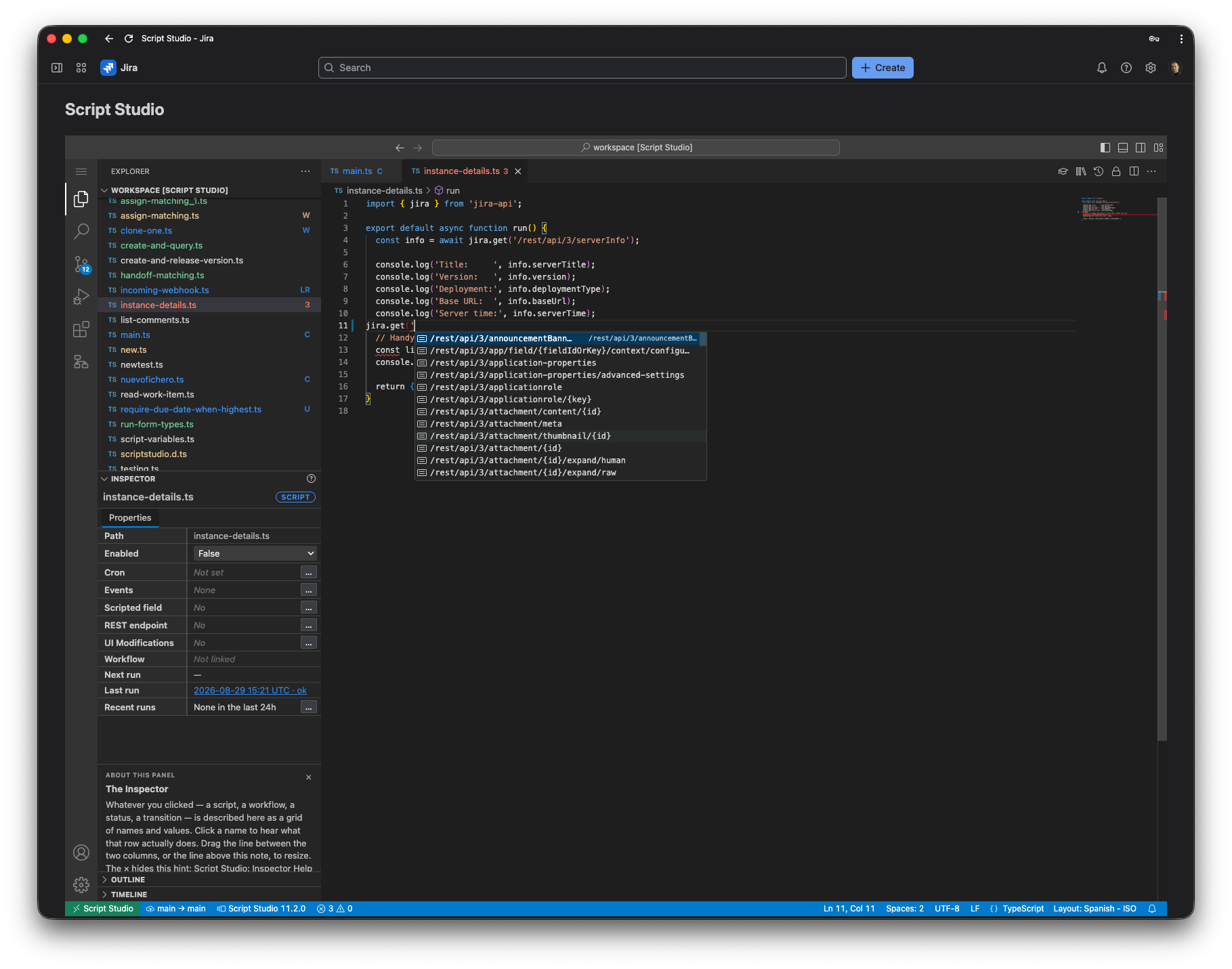
- Completion for the Jira REST API. Entering a quotation mark after
jira.get(lists the available endpoints, together with their parameters and the structure of the response. - Endpoints that are unavailable are shown struck through, so that an endpoint Script Studio cannot call is identified while the script is being written rather than when it is run.
- Documentation on hover for the Jira API and for the objects a script receives at run time.
- Error highlighting, go to definition and rename, including across files that reference one another.
5. The Properties panel
The Properties panel is located in the file tree area, below the list of files. Selecting a script displays everything Jira uses that script for, and allows each of those settings to be changed.
| Row | Displays | Action |
|---|---|---|
| Path | The location of the file in the workspace | — |
| Enabled | Whether the script may run automatically | Editable. Requires a schedule or at least one event to be set first. |
| Cron | The schedule and its time zone | Opens the schedule screen |
| Events | The number of Jira events the script responds to | Opens the event selection screen |
| Scripted field | The name and type of the calculated field, if any | Opens the field configuration screen. A Test button appears once the field exists. |
| Field error | The most recent failure when calculating the field, if any | — |
| UI Modifications | The screens the script changes, if any | Opens the UI modification configuration tab |
| REST endpoint | The endpoint name and whether it is currently answering | Opens the endpoint configuration screen |
| Workflow rules | The transitions that use this script | Opens the workflow concerned |
| Next run | The next scheduled execution | — |
| Last run | The most recent execution and its outcome | Opens that execution in the run history |
| Recent runs | A summary of the last 24 hours | Opens the run history for this script |
The panel toolbar provides access to the Example Library and the Run History.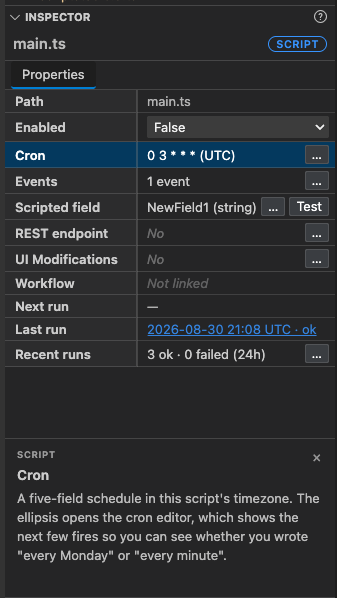
6. Status indicators in the file tree
Each file carries a short indicator and a colour, showing what Jira uses the script for and whether it is currently working.
| Indicator | Meaning |
|---|---|
C | The script has a schedule |
L | The script responds to Jira events |
F | The script provides a calculated field |
R | The script is available as a REST endpoint |
W | The script is used by a workflow rule |
U | The script is a UI modification |
CL, FR, and similar | Two purposes at once |
C+ | Three or more purposes. Hover to see the full list. |
! | The most recent execution failed |
| Colour | Meaning |
|---|---|
| Amber | Modified since the last commit |
| Green | Added and not yet committed |
| Red | The most recent execution failed |
| Blue | In use by Jira and functioning normally |
| Standard | An ordinary file, such as shared helper code |
Hovering over a file displays the detail behind each indicator: the schedule and its time zone, the number of events, the name and type of the field, the endpoint name, the screens a UI modification applies to, or the workflow transition concerned.
A setting that has been configured but switched off — a disabled schedule, a field not yet placed on a screen, or a closed endpoint — retains its indicator in a faded form, so that it remains visible during a review.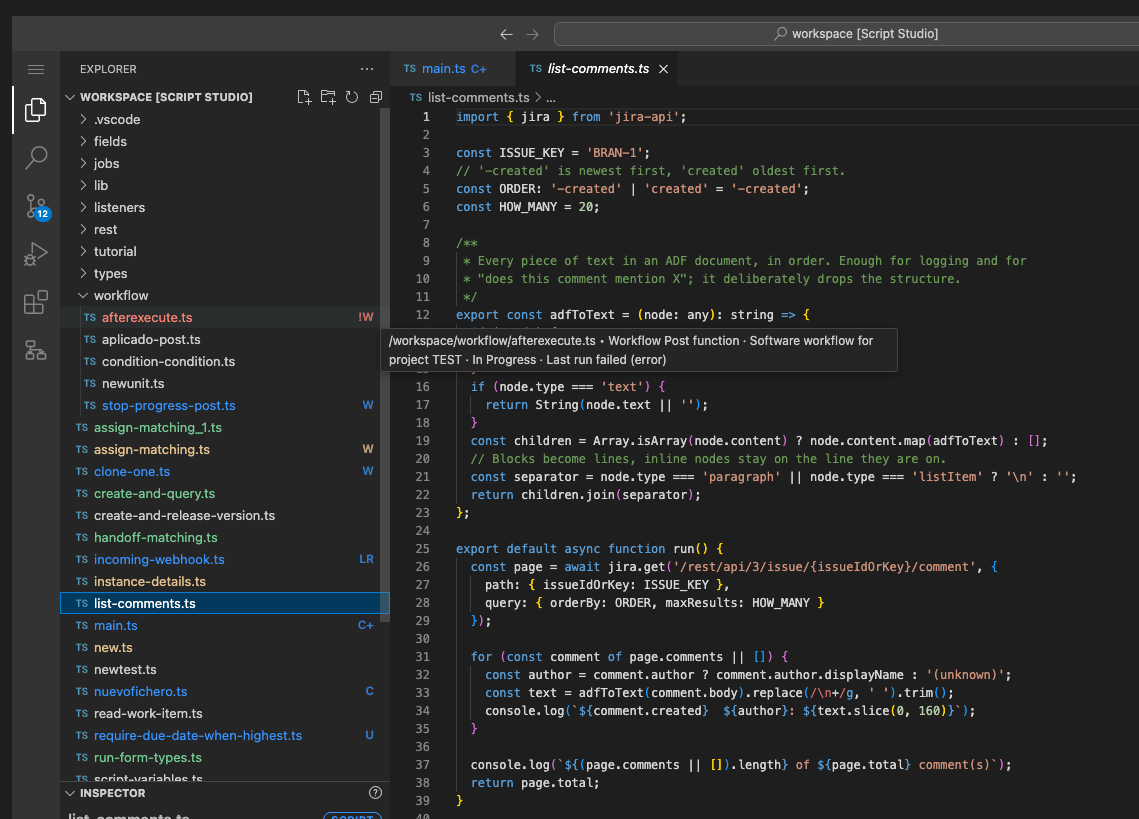
7. Commands
All features are available from the command palette under the Script Studio category.
| Command | Purpose |
|---|---|
| Run File | Runs the current script, opening its input form first if it declares one (also F5) |
| Edit Schedule | Opens the schedule screen |
| Edit Event Triggers | Opens the event selection screen |
| Configure Scripted Field / Test Scripted Field | Field configuration and testing |
| Configure UI Modifications | Screens, projects and issue types a script applies to |
| Configure REST Endpoint | Endpoint configuration, address and access token |
| Script Variables | Sets encrypted secrets shared across scripts |
| Run History | Opens the run history |
| Example Library / Insert Example | The example browser, and direct insertion |
| Commit, Push, Show Commits, Configure Git Remote | Source control |
| Follow Jira Theme | Returns the editor to the Jira light or dark setting |
8. Appearance
The editor follows the Jira light or dark setting automatically. Selecting a colour theme manually overrides this; the Follow Jira Theme command restores it.
The set of editor extensions is fixed by the vendor and cannot be changed by an administrator; see Security and Governance.
9. Non-script files
The workspace also accepts files that are not source code, such as certificates, data files or reference documents. The limits are 5 MB for a single file and 40 MB in total.
These files are listed in the source control view under Not versioned. They are stored and retained, but they are not included in commits.