Script Studio: Scheduled Scripts
A script can be configured to run automatically at set times. This is how Script Studio provides scheduled jobs: periodic reports, routine maintenance, and escalation of work that has been left unattended.
Note: 📹 Video placeholder — configuring a nightly escalation job: setting the schedule, checking the preview, enabling it, and reviewing the following day's execution.
1. Configuration
- Select the script in the file tree.
- In the Properties panel, open the Cron row.
- Set the schedule and the time zone, then select Enabled.
- Confirm that the Next runs list shows the expected times.
2. The schedule screen
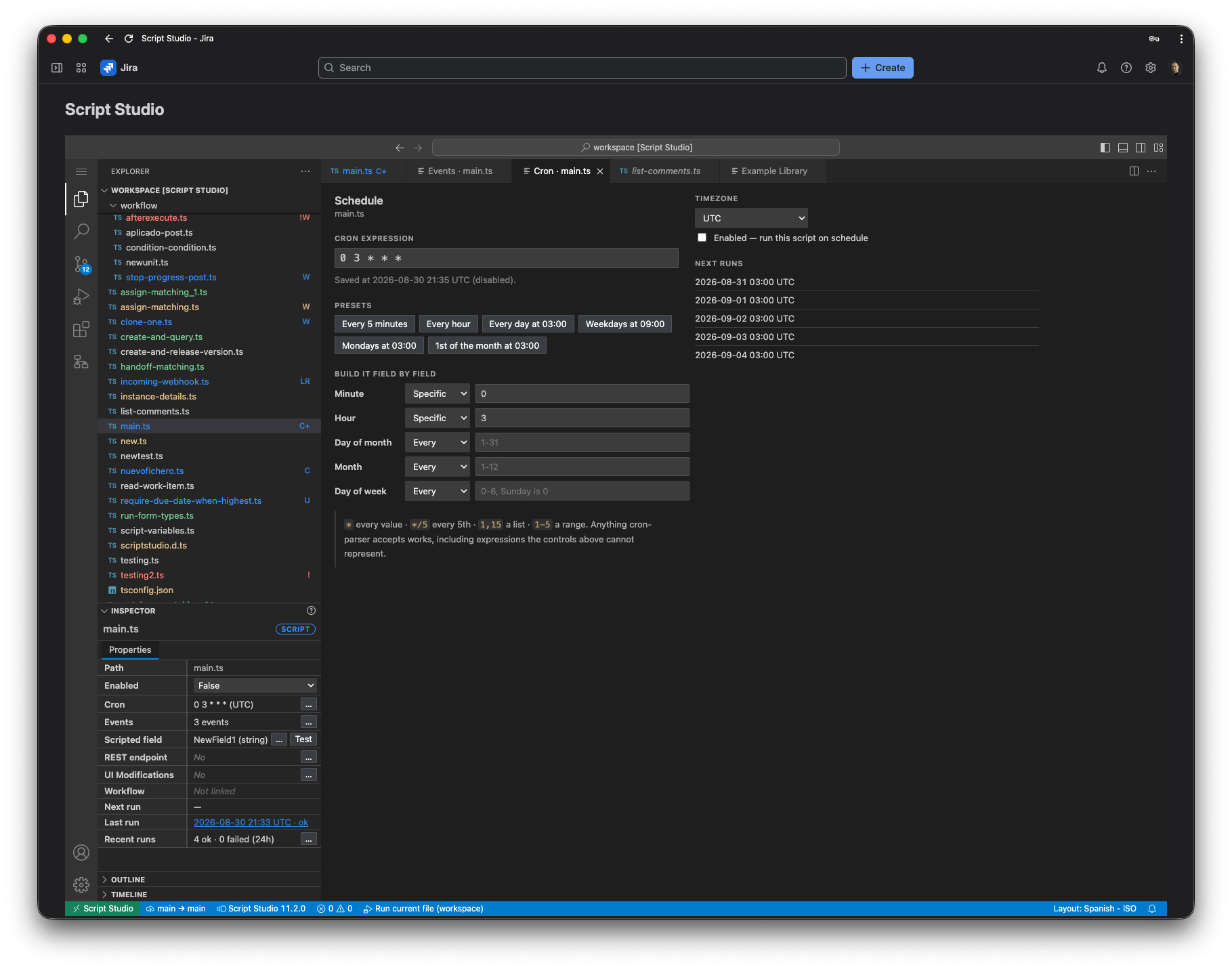
The screen provides four ways of arriving at the same schedule, each kept in step with the others.
Presets
The most common schedules, selectable in one step.
| Preset | Expression |
|---|---|
| Every 5 minutes | */5 * * * * |
| Every hour | 0 * * * * |
| Every day at 03:00 | 0 3 * * * |
| Weekdays at 09:00 | 0 9 * * 1-5 |
| Mondays at 03:00 | 0 3 * * 1 |
| First of the month at 03:00 | 0 3 1 * * |
Individual field controls
Each part of the schedule — minute, hour, day of month, month and day of week — can be set separately, choosing between Every, Every n, Specific, Range and Custom.
The expression field
A standard five-part cron expression may also be entered directly. The presets and the individual controls write into this field, and editing it updates them in turn.
Time zone and preview
The schedule is evaluated in the selected time zone, which is applied consistently across daylight saving changes. The Next runs list shows the forthcoming execution times and is updated as the expression is edited. An invalid expression is reported on the screen rather than accepted.
3. Frequency
The shortest interval available is five minutes. A schedule specifying a shorter interval runs no more frequently than this.
When several scripts are due at the same time, they are run in sequence. If there are more than can be completed in the time available, the remainder run at the next opportunity.
Note: Editing a schedule does not cause an immediate execution. A new or amended schedule takes effect from the time it is saved. Advanced: duplicate protection
Each execution is recorded as started before the script begins, so that a script cannot be started twice for the same scheduled time. Where the available time is exhausted before all due scripts have run, this is recorded and the outstanding scripts run at the next opportunity.
4. The Enabled setting
Enabled in the Properties panel controls automatic execution, and applies to both schedules and event triggers.
- It cannot be set until the script has a schedule, at least one event, or both.
- Setting it to False retains the schedule. The file tree continues to show the script as scheduled, in a faded form.
- Removing the schedule and all events sets it to False automatically.
5. Example
/**
 * Raises the priority of work that has received no attention for two weeks,
 * and records the reason on the item.
 */
import { jira } from 'jira-api';

const JQL = 'project = TEST AND statusCategory = "To Do" AND created <= -14d AND priority = Medium';
const NEW_PRIORITY = 'High';
const NOTE = 'No activity for more than 14 days; the priority has been raised automatically.';
const MAX_PER_RUN = 10;
const DRY_RUN = true;

export default async function run() {
  const found = await jira.get('/rest/api/3/search/jql', {
    query: { jql: JQL, maxResults: MAX_PER_RUN, fields: ['summary', 'priority', 'created'] }
  });

  let escalated = 0;
  for (const issue of found.issues || []) {
    if (DRY_RUN) {
      console.log(`Would raise ${issue.key} to ${NEW_PRIORITY}`);
      escalated += 1;
      continue;
    }
    // The priority change and the comment are sent together, so that an item is
    // never escalated without the accompanying explanation.
    await jira.put('/rest/api/3/issue/{issueIdOrKey}', {
      path: { issueIdOrKey: issue.key },
      body: {
        fields: { priority: { name: NEW_PRIORITY } },
        update: { comment: [{ add: { body: {
          type: 'doc', version: 1,
          content: [{ type: 'paragraph', content: [{ type: 'text', text: NOTE }] }]
        } } }] }
      }
    });
    console.log(`${issue.key} raised to ${NEW_PRIORITY}`);
    escalated += 1;
  }

  return { escalated, dryRun: DRY_RUN };
}
6. Recommended practice
- Begin with a trial run. A setting that records the intended action without carrying it out allows the results to be reviewed before any change is made.
- Limit the number of items processed in one execution. The schedule runs again shortly afterwards, and a smaller batch produces a record that can be reviewed.
- Observe the execution limits. A single execution may make up to 50 Jira API calls. Where more work is required, distribute it across several schedules.
- Record what was done. The run history is the only record of an unattended execution.
- Return a summary. The returned value is retained with the execution record and is the quickest way to review it later.
7. Troubleshooting
| Symptom | Action |
|---|---|
| The script never runs | Check that Enabled is set to True and that a schedule has been entered. The Properties panel shows no next run when none is set. |
| The script runs at the wrong time | Check the time zone. The Next runs preview shows the times that will be used. |
| The script runs less often than specified | The minimum interval is five minutes, and scripts due at the same time run in sequence. |
| The script ran once and then stopped | Review the run history; a failure will be recorded there. |
| The execution timed out | Reduce the number of items processed in one execution, or divide the work between several scripts. |